> For the complete documentation index, see [llms.txt](https://docs-vnext.kiflo.com/llms.txt). Markdown versions of documentation pages are available by appending `.md` to page URLs; this page is available as [Markdown](https://docs-vnext.kiflo.com/leads-deals/deal-registration/how-to-work-with-distributors-and-resellers.md).
# How to work with distributors and resellers?
When collaborating with distributors and resellers, it is typical for distributors to have visibility into all the deals registered by the resellers.
In this article we will guide you through the whole implementation, step-by-step, to make deals registered by resellers visible to their distributor.
{% hint style="warning" %}
**Requirements**
In order to implement this solution you'll need a paid [Zapier account](https://zapier.com/pricing).
{% endhint %}
{% hint style="info" %}
**In this article**
* [Solution overview](#solution-overview)
* [Step-by-step guide](#step-by-step-guide)
* [Customize partner types](#customize-partner-types)
* [Add new partner property: "Distributor"](#add-new-partner-property-distributor)
* [Create or update partners](#create-or-update-partners)
* [Create a Zap to add the distributor to the deal](#create-a-zap-to-add-the-distributor-to-the-deal)
* [Zap details](#zap-details)
* [Let's test!](#lets-test)
{% endhint %}
## Solution Overview
Before you begin the implementation, let's first understand the main principles.
### Create distributors and resellers
You need to create partners in Kiflo for every distributor and reseller. Use the **Partner type** property to specify whether the partner is a *Distributor* or a *Reseller*. It will help you organize your partners.
Finally, for every reseller, define a new property that stores the name of its distributor.
### Associate distributors on deals
On Kiflo you can have many partners associated with the same deal. If two partners are associated with a deal, they both have access to this deal from their portal.
**Every time a reseller registers a deal we will automatically associate its distributor with the deal** so the distributor can see the deal.
## Step-by-step guide
Follow those steps to implement the upper solution.
### Customize partner types
Add two new values for partner type if it's not already done:
* Distributor
* Reseller
Follow the instructions here: [How to add a partner type?](/manage-partners/programs-partner-types/add-partner-type.md)

### Add new partner property: "Distributor"
In order to store on each reseller the name of its distributor, you need to create a new property on partners: "**Distributor**" (or choose another name that better suits your needs).
Follow the instructions here: [How to customize properties?](/account-settings/properties/customize-properties.md#adding-custom-properties)

### Create or update partners
Create new partners, distributors, and resellers, or update the existing ones as follows:
* Distributors
* Set the partner type property to *Distributor*
* Resellers:
* Set the partner type to *Reseller*
* Define the name of the *Distributor* in the new property **Distributor**

### Create a Zap to add the distributor to the deal
You need to create a Zap to automatically associate distributors on deals registered by resellers.
{% hint style="info" %}
**Use the Zap template**
Your time is precious! You can use this Zap template to create the Zap with all the expected steps. You just need to customize them to connect to your Kiflo account.
[Create the Zap from the template](https://zapier.com/shared/51ceaf3320f9a08a5419e2232f8338225db59b1c)
{% endhint %}
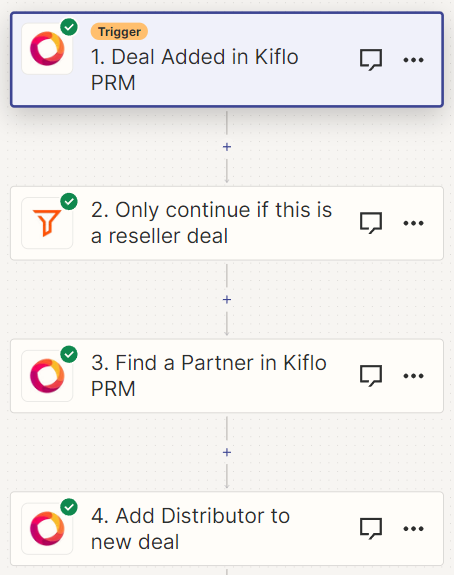
Here is what the Zap does:
* Triggered every time there is a deal registered
* Filter to only continue if the deal is registered by a reseller
* Find the corresponding distributor in Kiflo
* Add this distributor to the new deal
Steps in the Zap
### Zap details
The trigger must be **Deal Added**, every time a deal is created in Kiflo it triggers this Zap:

Then, add a filter to only continue if the deal is registered by a reseller. If you have other kinds of partners you don't want to execute this Zap:

Next, you need to find the distributor in Kiflo, based on the partner who registered the deal. Use the **Distributor** property you created on partners, to find the partner based on its name (the name of the distributor). In this example, the distributor is named *Microsoft*:

Finally, the last step is to add the partner returned by step #3 to the new deal. Here is how you must configure this step:
* Deal ID: select the ID of the deal from the trigger (step 1)
* Partner ID: select the ID of the partner found in step 3
* Role: select the value you added in partner types: *Distributor*
* Source: leave it empty, the source is the reseller, not this distributor
* Use default rewards: you can leave it empty if you don't want to generate commissions for distributors

### Let's test!
In order to validate the solution:
* Go back to Kiflo
* Go to the **Deals** page
* Click the **Register** button
* Select one of your resellers in the **Partner** field
* Complete the deal registration process
Then wait a few seconds (the automation is near-real-time), refresh the page, and go to the Partners tab. You should see the distributor:

That's it! Distributors will see resellers' deals!
---
# Agent Instructions
This documentation is published with GitBook. GitBook is the documentation platform designed so that both humans and AI agents can read, navigate, and reason over technical content effectively. Learn more at gitbook.com.
## Querying This Documentation
If you need additional information that is not directly available in this page, you can query the documentation dynamically by asking a question.
Perform an HTTP GET request on the current page URL with the `ask` query parameter, and the optional `goal` query parameter:
```
GET https://docs-vnext.kiflo.com/leads-deals/deal-registration/how-to-work-with-distributors-and-resellers.md?ask=&goal=
```
`ask` is the immediate question: it should be specific, self-contained, and written in natural language.
`goal` is optional and describes the broader end goal you are ultimately trying to accomplish on behalf of the user. GitBook uses it to tailor the answer towards what is most useful for that goal.
The response will contain a direct answer to the question and relevant excerpts and sources from the documentation.
Use this mechanism when the answer is not explicitly present in the current page, you need clarification or additional context, or you want to retrieve related documentation sections.