> For the complete documentation index, see [llms.txt](https://docs-vnext.kiflo.com/llms.txt). Markdown versions of documentation pages are available by appending `.md` to page URLs; this page is available as [Markdown](https://docs-vnext.kiflo.com/account-settings/emails/customize-email-templates.md).
# How to customize email templates?
In Kiflo you can customize your email templates to match your processes. Email templates are used in Kiflo in the following instances:
* **Partner Invitation** - You can create a specific email template to send whenever you invite a new partner to the Partner Portal
* **Lead Acknowledgement** - You can create a template to be sent to partners when they have submitted a new lead
* **Deal Acknowledgment** - You can create a template to be sent to partners when they have registered a new deal
* **New Partner Application** - You can create a template to be sent to partners to acknowledge their application to your partner program.
* **Partner Application Accepted** - You can create a template to be sent to partners when their application to become a partner of yours has been accepted
* **Partner Application Rejected** - You can create a template to be sent to partners when their application to become a partner of your has been rejected
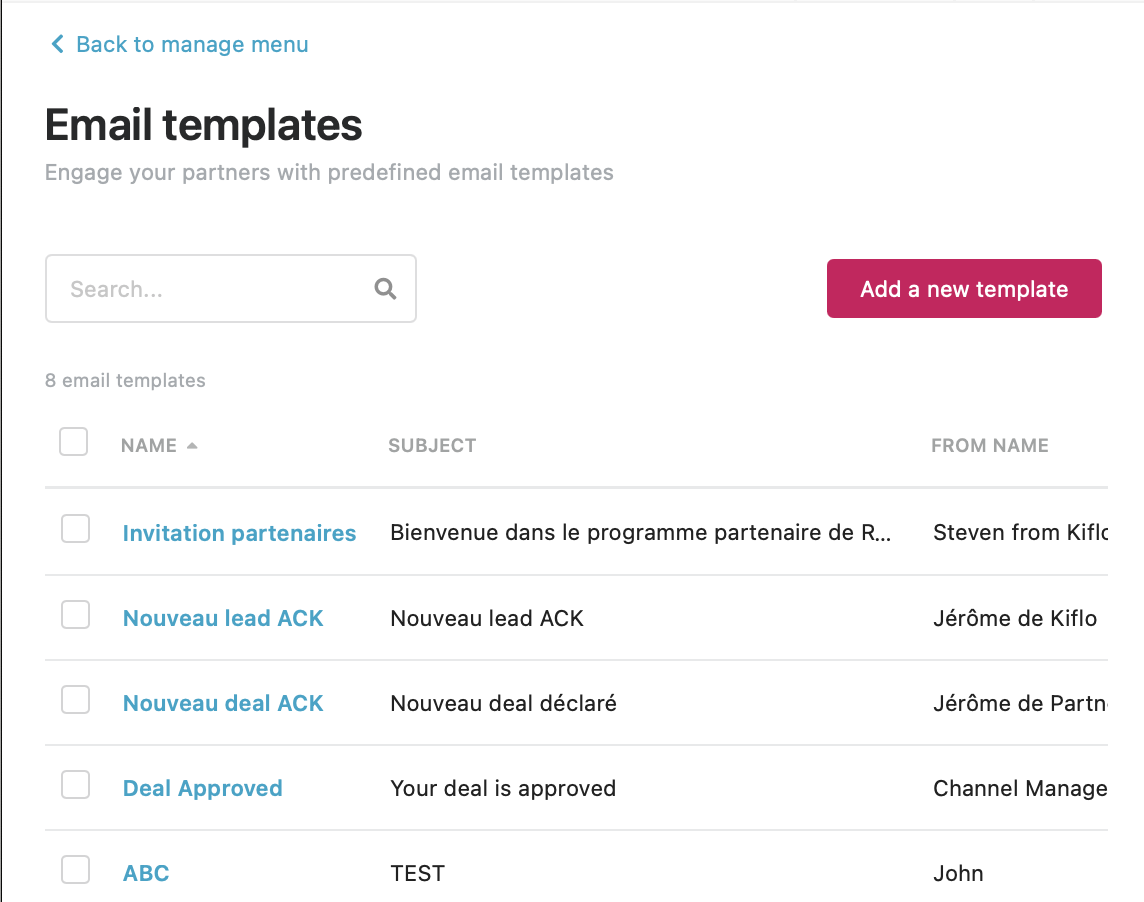
To customize an email template, from the main menu go to **Manage** > **Email templates**:
## Editing "About this email template"
You can customize the following:
* **From Name** - Name used to send email e.g. Channel Manager or Company Name.
* **Reply-To** - The email specified here is used for any replies to the email.
* **BCC** - This field can be used to track emails on a CRM or for team visibility purposes.
* **Invitation Email On/Off Button** - The email template can be used as an invitation email template. If enabled, this template will be used to invite new partners to Kiflo.
{% hint style="info" %}
You can rename the email template by clicking **Action.**
{% endhint %}
Don't forget to save your changes by clicking on the **Save** button.

## Adding/Editing Placeholders
You can insert placeholders in the email template. They will be replaced by contextual information depending on the recipient.
Here are the placeholder options available on Kiflo:
* **User Firstname** - Ability to add the First Name of the recipient automatically.
* **User Lastname** - Ability to add the Last Name of the recipient automatically.
* **User Activation URL** - Automatically add User Activation URL to a template. This Placeholder gives the recipient the ability to log in to Kiflo by using the activation URL. This placeholder is most often used when a partner application has been accepted. You can also edit the text of the hyperlink by changing the content after the colon ":".
* **Lead URL** - Automatically add Lead URL to a template. This Placeholder gives the recipient the ability to view a lead that has been submitted on Kiflo. This placeholder is most often used as an acknowledgment when a lead has been submitted. Y You can also edit the text of the hyperlink by changing the content after the colon ":".
* **Deal URL** - Automatically add Deal URL to a template. This Placeholder gives the recipient the ability to view a deal that has been submitted on Kiflo. This placeholder is most often used as an acknowledgment when a deal has been submitted. You can also edit the text of the hyperlink by changing the content after the colon ":".
#### How to edit the text in a Placeholder:
Example: {{ActivationUrl:click here}} can be changed to {{ActivationUrl:Activate your account}
You can edit the contents of a placeholder by changing the content after the colon ":"

Changed to {{ActivationUrl:Activate your account}.

## Testing Email Templates
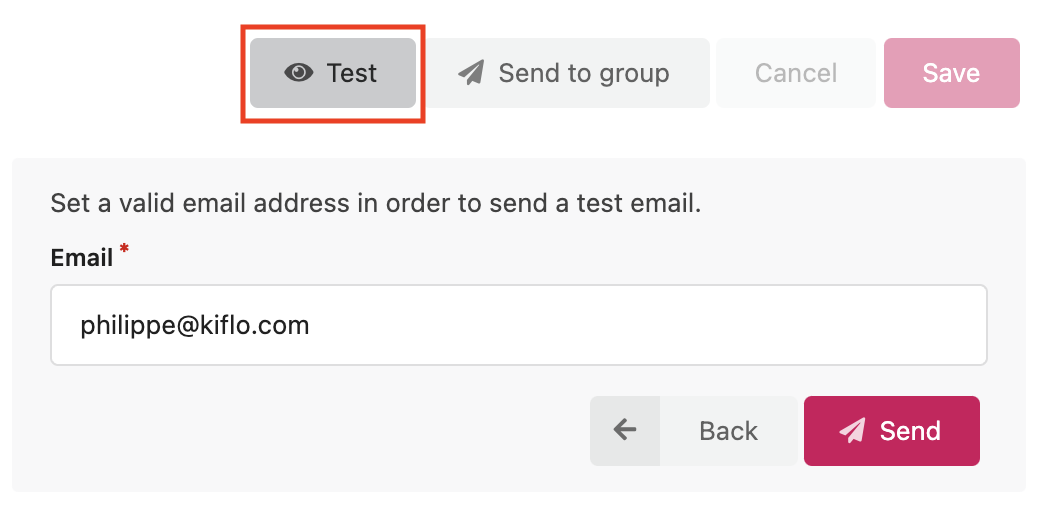
You can test a template before sending it to a group or assigning it to your processes.
Here is how to send a test email:
1. Click the **Test** button
2. Choose a recipient email
The placeholders will be replaced by the current user information.
Don't forget to save your changes by clicking on the **Save** button.
---
# Agent Instructions
This documentation is published with GitBook. GitBook is the documentation platform designed so that both humans and AI agents can read, navigate, and reason over technical content effectively. Learn more at gitbook.com.
## Querying This Documentation
If you need additional information that is not directly available in this page, you can query the documentation dynamically by asking a question.
Perform an HTTP GET request on the current page URL with the `ask` query parameter, and the optional `goal` query parameter:
```
GET https://docs-vnext.kiflo.com/account-settings/emails/customize-email-templates.md?ask=&goal=
```
`ask` is the immediate question: it should be specific, self-contained, and written in natural language.
`goal` is optional and describes the broader end goal you are ultimately trying to accomplish on behalf of the user. GitBook uses it to tailor the answer towards what is most useful for that goal.
The response will contain a direct answer to the question and relevant excerpts and sources from the documentation.
Use this mechanism when the answer is not explicitly present in the current page, you need clarification or additional context, or you want to retrieve related documentation sections.